

So you’re switching to HubSpot. Good move, honestly, most teams that make the jump don’t look back. But there’s a part nobody warns you about enough: CRM data migration is only as good as the plan behind it. Rush it, and you get duplicate contacts, deals attached to the wrong company, and a support inbox full of “where did my data go” messages.
This is the complete HubSpot CRM migration checklist we wish more teams had before they hit “import.” It’s built for anyone moving off Salesforce, Zoho, an old homegrown system, or, let’s be honest, a tangle of spreadsheets everyone’s too embarrassed to admit still runs the business.
Why Businesses Migrate to HubSpot CRM
Nobody changes to a CRM purely for fun, typically either the previous system is holding them back; sales and marketing are using different databases; or even the creation of a small report is costing them half the day.
The main promise of HubSpot is that you will only interact with one system: contacts, deals, tickets, and marketing will all be in the same place, instead of having to deal with three different tools that don’t communicate with each other. Data-quality tools which were previously in a separate Operations Hub now are part of Data Hub, so any data cleanup and syncing are core platform features. Don’t know if HubSpot is the right choice for you right now? This guide to implement HubSpot CRM is worth a read first.
Benefits of a Well-Planned HubSpot Migration
Here’s the honest version: a rushed migration creates more work than it saves. Teams that plan it properly get clean data from day one, pipelines that match how reps actually sell instead of some old default, and a team that adopts the system instead of working around it. Go-live is calmer too, since the ugly surprises get caught during testing, not on launch day.
Complete HubSpot Migration Checklist for CRM Transition
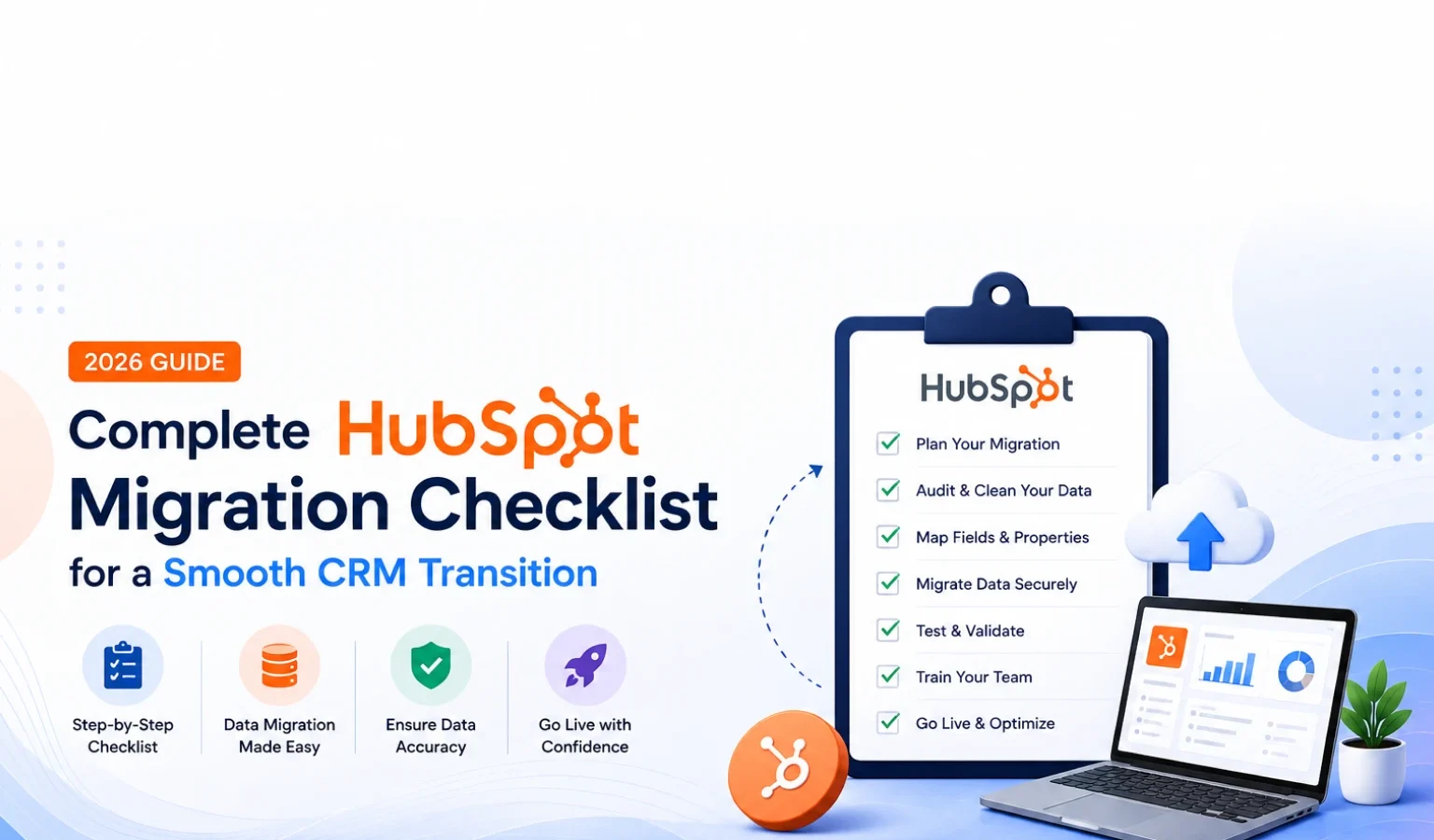
Alright, here’s the HubSpot migration checklist itself, the same one we run through on every HubSpot data migration project, step by step.
- Audit your existing CRM data first. Before deciding what moves to HubSpot, know exactly what you’re working with: contacts, companies, deals, tickets, notes, attachments.
- Get clear on why you’re migrating. Consolidating tools? Cleaning up years of bad data? Scaling for a bigger team? The answer changes what gets rebuilt versus what you just leave behind.
- Clean the data before it goes anywhere. Dedupe contacts, fix inconsistent fields (yes, “USA” and “United States” need to match), and cut anything that’s dead weight. Most teams skip this, and regret it.
- Back everything up. Export the whole database before touching a single record. If something breaks mid-migration, this is what saves you.
- Map your old fields to HubSpot’s. Match what you had to HubSpot properties, and build custom fields for anything that doesn’t have an obvious home yet.
- Import contacts, companies, deals, and tickets, in that order. Get the sequence wrong and contacts end up floating with no company attached.
- Rebuild your pipelines and custom properties. Don’t just copy the old structure over. This is where solid HubSpot CRM development work actually pays off, because a pipeline that matches how your team sells now is worth more than one built for how they sold three years ago.
- Move over templates, forms, and workflows, carefully. Automation rarely carries over one-to-one between platforms. Audit each workflow instead of assuming it’ll just click into place.
- Reconnect your other tools. Email, calendar, billing, whatever else your team touches every day.
- Test before you commit to anything. Run a small batch first, HubSpot’s sandbox lets you test on roughly 5 to 10% of your records, and go looking for mismatched values, broken associations, weird formatting. You will find something.
- Actually train your team. Not a fifteen-minute walkthrough, role-specific sessions, cheat sheets, someone to go to when they’re stuck. A CRM nobody knows how to use isn’t really live yet.
- Go live, then keep watching. The first few weeks matter most. Catch a broken workflow early and it costs an afternoon. Catch it three months later and it costs a quarter of bad reporting.
How to Migrate to HubSpot CRM Without Data Loss
If there’s one rule, it’s this: never migrate straight into production. Test a small batch through a HubSpot sandbox first, check that associations, dates, and dropdowns landed correctly, then fix what’s broken before the real migration runs. It also helps to keep your old system read-only for a few weeks after go-live, just in case a record looks off. For messier legacy exports or anything needing real API work, it’s often faster to hire software developer support here than to catch every error by hand.
Common HubSpot Migration Mistakes to Avoid
A few of these show up again and again:
- Migrating dirty data as-is. Duplicates and outdated records don’t disappear in the move, they just move with you.
- Copying the old setup exactly instead of rebuilding it. Migration is the one real chance you get to fix what was broken.
- Getting field mapping wrong, which quietly wrecks reporting weeks later.
- Assuming it’ll take two weeks. A mid-sized migration realistically takes 8 to 12 weeks.
- Skipping training because “people will figure it out.” They usually don’t.
When Should You Hire a HubSpot Migration Expert?
If your dataset is small and simple, and you don’t have custom objects or edge cases, you can likely manage with HubSpot’s native tools yourselves. But when you introduce custom pipelines, extensive data history, multiple integrations, or a pressing timeline, your in-house team quickly depletes their capacity and small mistakes begin to occur without being noticed. Also, if we have a sales process that is quite a bit modified, getting professional assistance at an early stage is usually less costly than making corrections later. So, in such scenarios, aligning the migration with custom CRM development support not only reduces expenses but also saves lots of time, probably about an average of 40 working days.
Conclusion
Just as there’s no reason a HubSpot migration has to be as dreadful as many think, with the same spirit of doing things well, all you have to do is follow the checklist, do some tests before making the switch forever, and take notice of those details people generally ignore. With a migration done in such a way to leave no trace of chaos, you’ll get out of it with a data set in your new CRM that is so clean you can actually breathe it, and the team will be ready to work with it, not just see their user names in it every single time they open the CRM screen.
FAQs
How long does a HubSpot CRM migration actually take?
A couple of weeks for something small. For a mid-sized business with custom pipelines and integrations, plan on 8 to 12 weeks.
Can you migrate to HubSpot without losing data?
Yes, mostly by backing everything up first, cleaning it before import, and testing a small sample before running the full migration.
Do you need a developer to migrate to HubSpot?
Not always. Simple migrations run fine through HubSpot’s native import tools. Once custom objects or heavy automation get involved, expert help pays for itself.
What’s the single biggest mistake people make?
Migrating messy, unorganized data without cleaning it first. It’s the one shortcut that costs the most later.


